Org Chart Maker for slides that design themselves
Most org chart makers hand you a finished diagram and leave the hard part to you: getting it into the deck you are actually presenting. Beautiful.ai builds the org chart as a slide from the start. Add a person and the layout realigns around them, node and connector colors come from your theme, and the chart presents inside the deck instead of arriving as a screenshot.



An org chart maker built for presentations
Beautiful.ai's org chart slide will revolutionize the way you present team structures. With auto-aligning layouts, you can effortlessly create and update your charts, saving you valuable time and ensuring your presentations always look polished.
A chart that adapts instantly as your team changes
Every node sits on a Smart Slide, which realigns, resizes, and animates content automatically. Click a person and four blue plus signs appear on their sides: left and right add a peer in the same row, top and bottom add a manager or a direct report. Sliders control vertical and horizontal spacing when you want the chart tighter or looser. Nobody redraws boxes.

Structure that stays on your brand
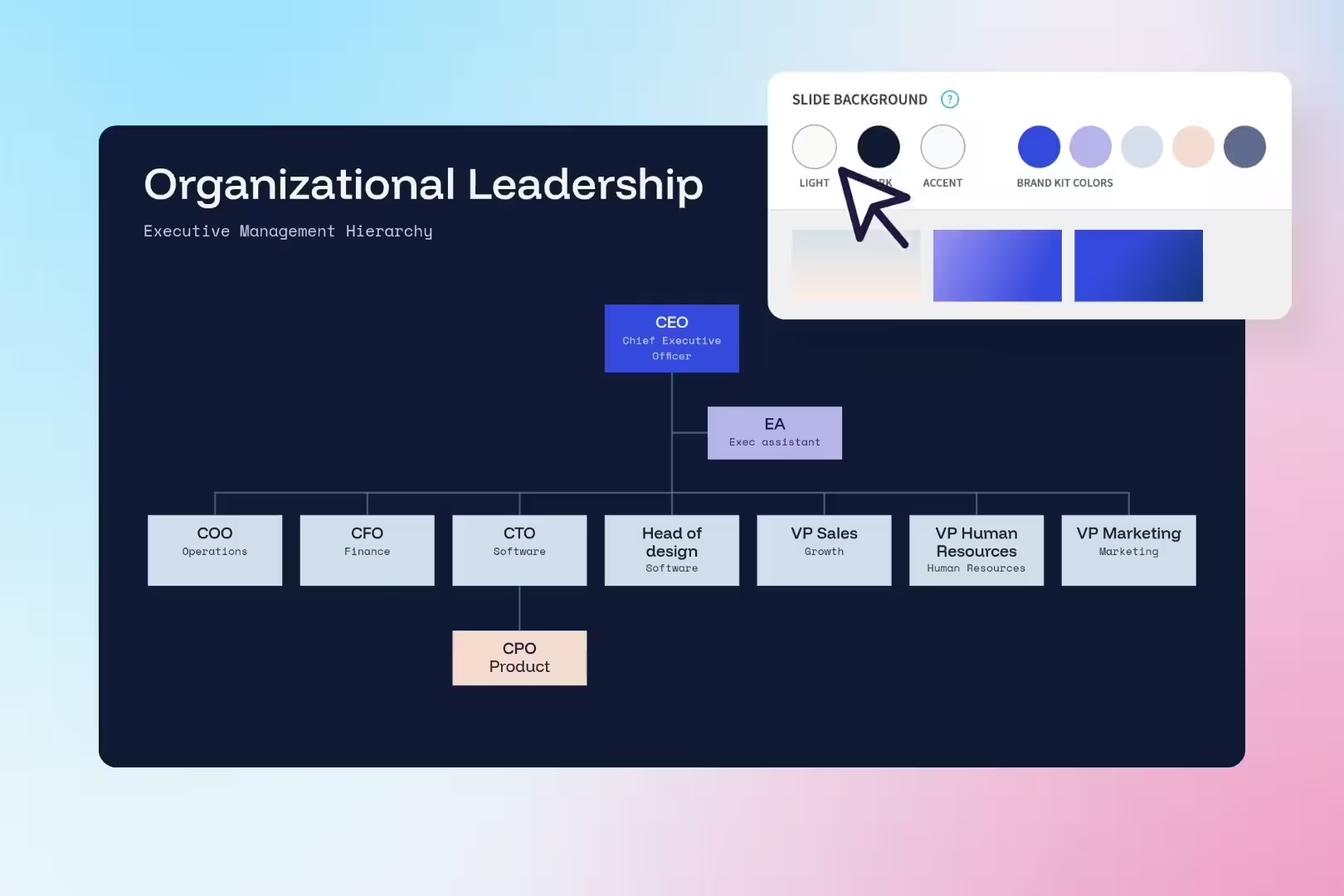
Node and connector colors come from the theme you are already using, so the chart matches the rest of the deck without anyone picking hex codes. Five node styles cover the range: Minimal for a name and title, Box for emphasis and readability, and three photo styles when you want faces on the chart. Layout switches between Expanded, Collapsed, Stacked, and Table, and the whole chart flips between vertical and horizontal. Start from the org chart template if you want the structure already in place.
AI that fills in the role descriptions
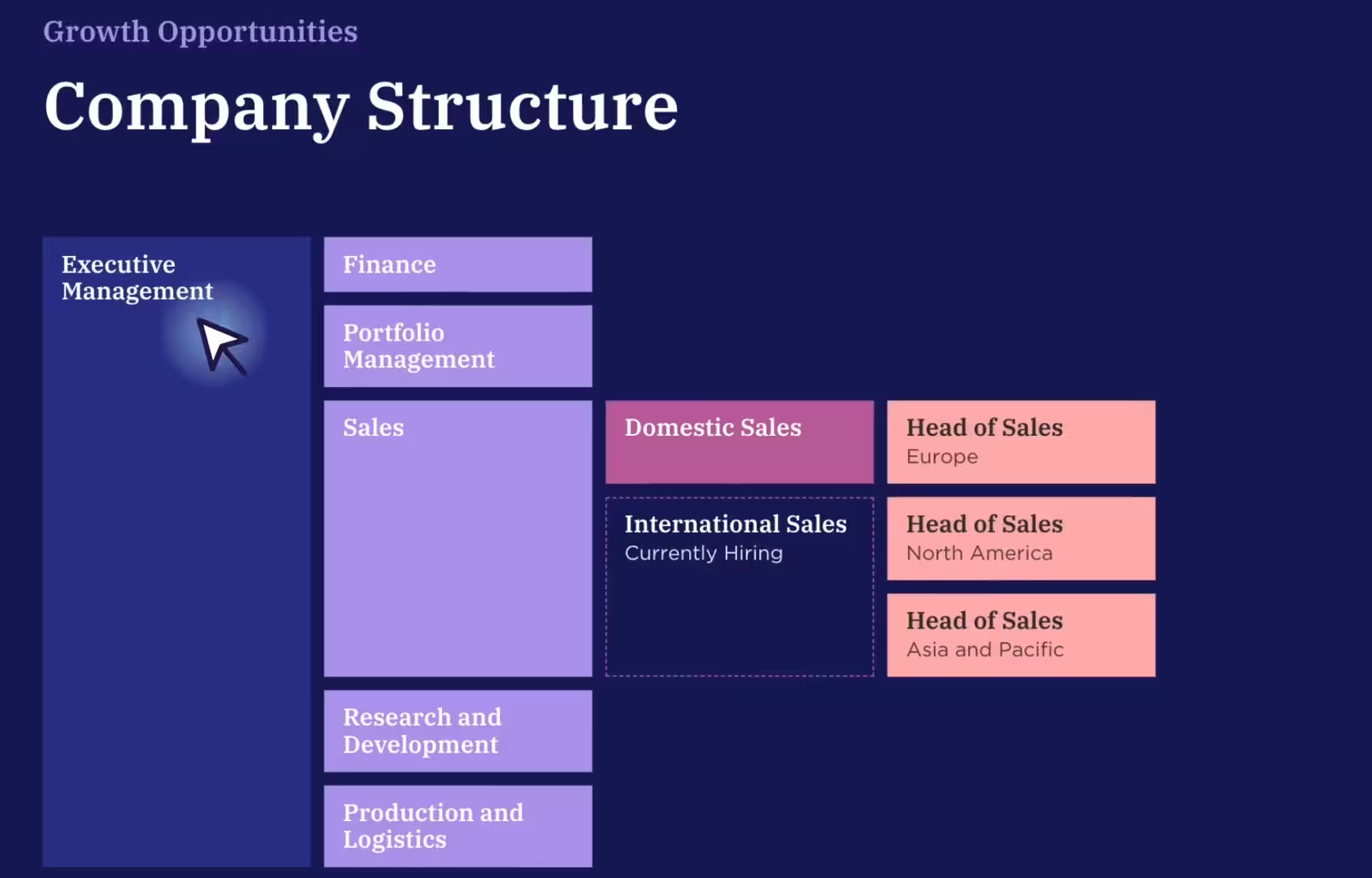
The AI assistant works on the org chart slide itself. It can auto-generate or refine a description for each role based on job title, department, or function, write a one or two sentence overview of what a team owns, and rewrite or resize the supporting copy around the chart. You keep control of the structure. The AI handles the copy that surrounds it.
How to make a org chart in Beautiful.ai
Three steps from a blank slide to an org chart you can present. No design skills required.

1
Start from the org chart slide
Add the Org Chart slide to any presentation, or open the org chart template and use it as your starting deck. Every item begins in the Box style, a rectangle carrying a name and a title or role.

2
Build the reporting lines
Click the person you want to build from. Four blue plus signs appear, one on each side. Left and right add a peer into the same row. Top and bottom add a manager above or a direct report below. Repeat down the tree until the structure matches the company.
3
Style it, present it, export it
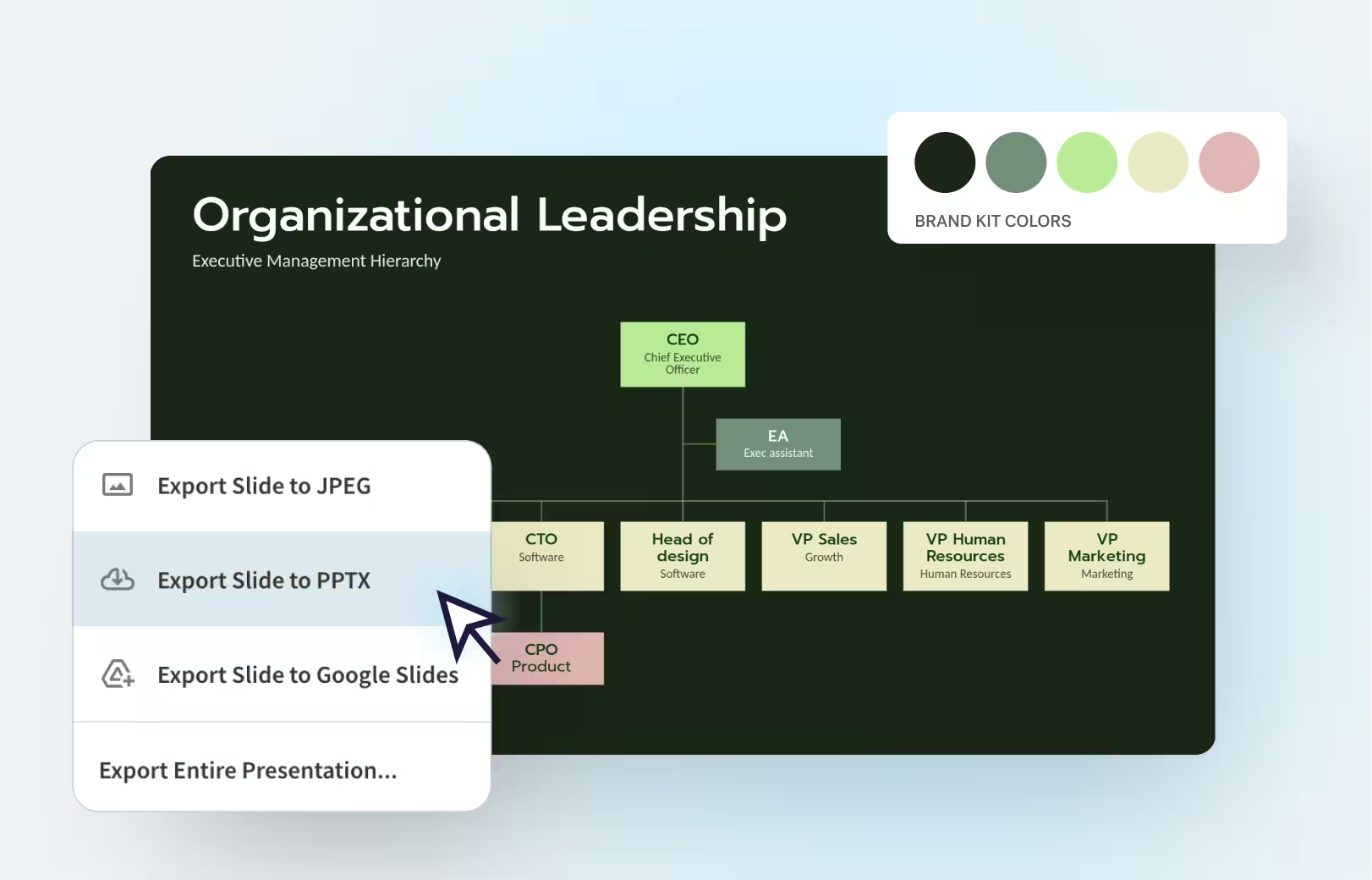
Switch the node style between Minimal, Box, and the three photo options, set the direction to vertical or horizontal, and pick the layout that fits the slide. Hide the root node if the chart starts below the CEO. Present it from Beautiful.ai, or export the deck as an editable PowerPoint, Google Slides, or PDF file on a Pro, Team, or Enterprise plan.
Frequently asked questions
Add the Org Chart slide to a presentation, click any person, and use the plus buttons on their four sides to add peers, managers, and direct reports. Then set the node style, direction, and layout from the properties panel. You can also start from the org chart template and edit from there.
Yes. Pro, Team, and Enterprise plans export the deck as an editable PowerPoint file, a Google Slides file, or a PDF. Beautiful.ai’s transitions and animations are not supported by those platforms, so they are lost on export. A shareable link keeps the presentation intact.
Three of the five node styles carry photos. Photo 1 is the Box style with a photo, Photo 2 is the Minimal style with a photo, and Photo 3 is a circle style with a photo. Minimal and Box cover the cases where you want a compact, high-density chart instead.
The Layout property handles most of it. Expanded and Collapsed suit charts of different sizes, Stacked puts nodes directly on top of each other, and Table uses the full slide when you do not need photos. Past a certain size, split it. Smaller charts broken down by division or department read better than one giant chart.
An org chart, or organizational chart, is a diagram that illustrates the structure and reporting relationships within a company. Teams use them to show how departments connect, who reports to whom, and how to reach people. They also give management a view of roles, promotions, and team resources.
Beautiful.ai runs on a 14-day free trial of Pro or Team, which covers the org chart slide and every other Smart Slide. Paid plans start at $14.50 a month for Pro, billed annually. There is no free tier. See pricing for the full comparison.
Structural charts stay simple and minimalistic, functional charts display departmental responsibilities, and position charts list employee titles and duties. Pick the one that suits your organization’s size and needs, then use the node style and layout properties to match.
When the chart is your system of record. Lucidchart sells “Automatically up-to-date org charts” and Creately’s org chart software leads on turning “Spreadsheet Data Into a Living Org Chart Fast”, both built to stay in sync with people data between meetings. Beautiful.ai is built for the meeting itself, where the chart has to sit in the deck, match the brand, and hold up on a screen.

Turn your next org chart into a presentation.
Build the structure on a slide that redraws itself, then present it. Try Beautiful.ai free for 14 days.
