PDF to Google Slides Converter for Fully Editable Decks
Most PDF to Google Slides converters send you on a detour. The PDF becomes a PowerPoint file, the file downloads, you upload it to Google Drive, and the pages arrive in Slides with formatting you may need to fix. Beautiful.ai reads the PDF and rebuilds it as designed slides. Upload the file, shape the AI-generated outline, and export a deck that opens in a new Google Slides tab with every slide still editable.

A PDF to Google Slides converter built for presenting
Three things change once the PDF is rebuilt as slides.
Straight into Google Slides
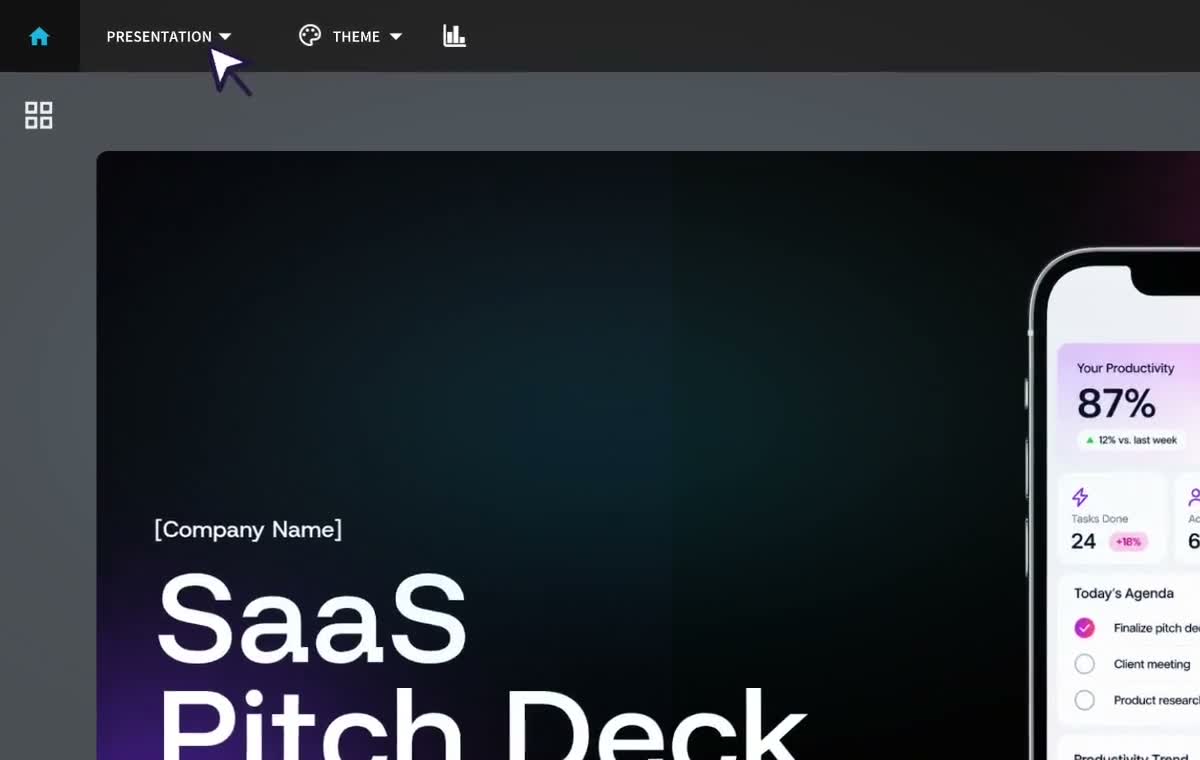
Export to Google Slides is a built-in option in Beautiful.ai. Go to the Export Presentation menu, click on ‘Export to Google Slides’ and the finished deck opens in a new Google Slides tab, fully editable, with no PowerPoint file to download or upload along the way. Skipped slides stay out of the export unless you tick the box to include them.
Slides rebuilt on Smart Slides
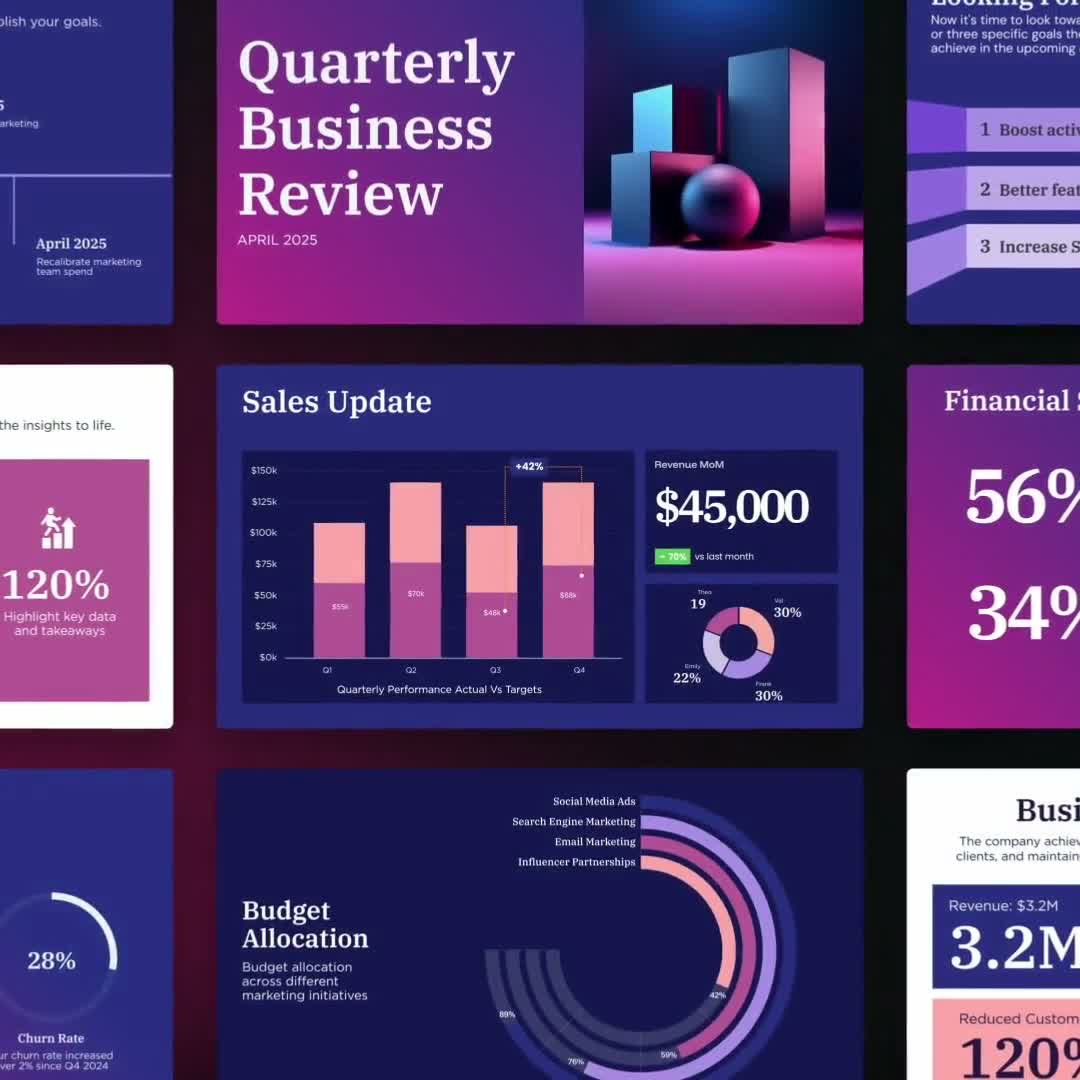
A file converter traces each PDF page into a slide with the same frozen layout. Beautiful.ai builds the content on Smart Slides, over 300 layouts for data, comparisons, quotes, timelines, and image grids. Each one realigns and resizes as you edit, so adding a point to a list never means nudging text boxes, and the deck reads like it was designed for the screen it will be shown on.

The outline keeps you in control
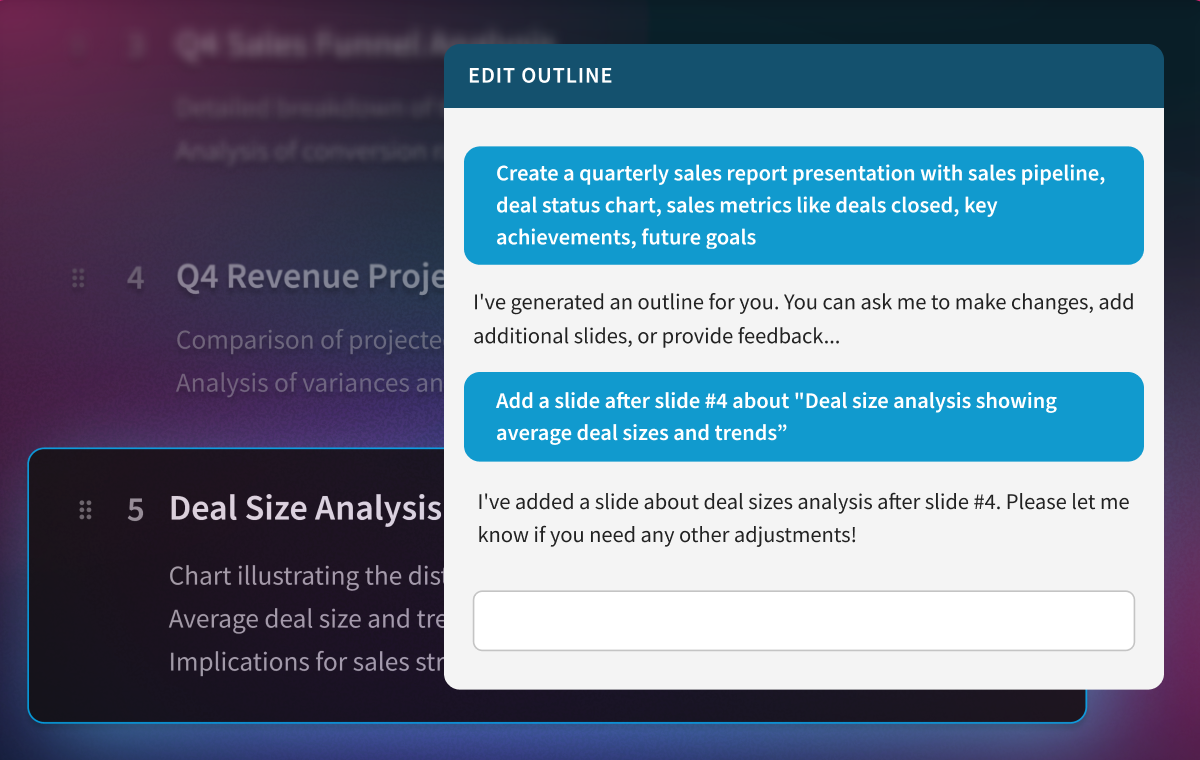
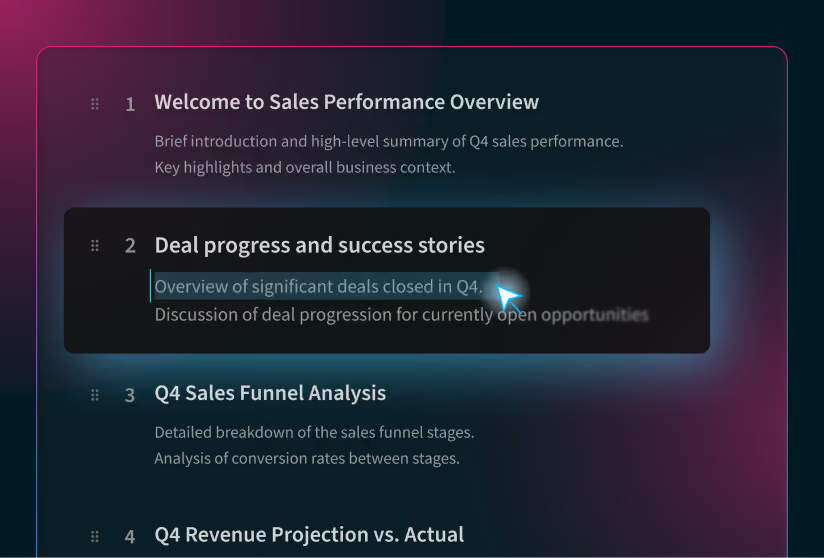
Create with AI drafts a slide-by-slide outline from your PDF before it designs anything. Edit titles and copy, reorder or remove slides, add a section or a conclusion, or type a request such as “Delete slides 4, 6, and 9” into the AI chat panel. Then pick a theme, choose how images should be sourced, and generate the deck.
How to convert a PDF to Google Slides in three steps
One guided flow, from upload to an open Google Slides tab.
1
Upload your PDF
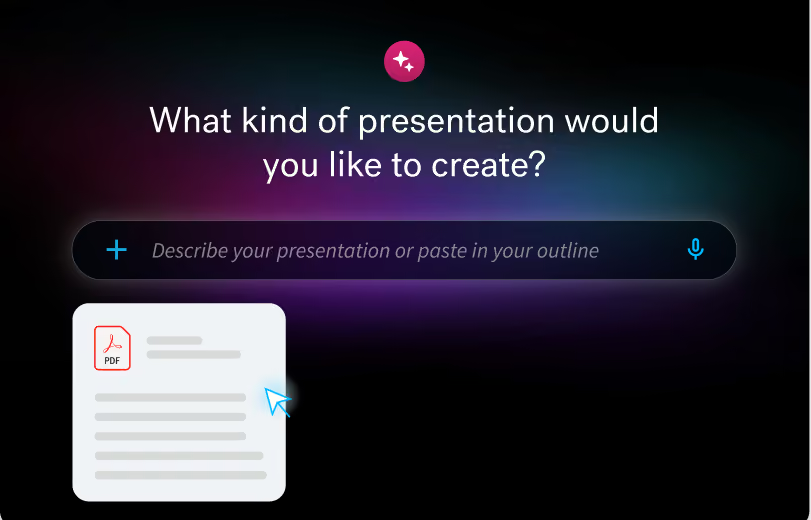
In Beautiful.ai, click Create Presentation and choose Create with AI. Click the plus icon to add your PDF as source material. Documents and links work too.
2
Shape the outline and generate
Beautiful.ai generates a slide-by-slide outline for your content. Edit it directly or through the AI chat panel until the story is right, set a brand kit and your image preferences, then click Generate Presentation.
3
Export to Google Slides
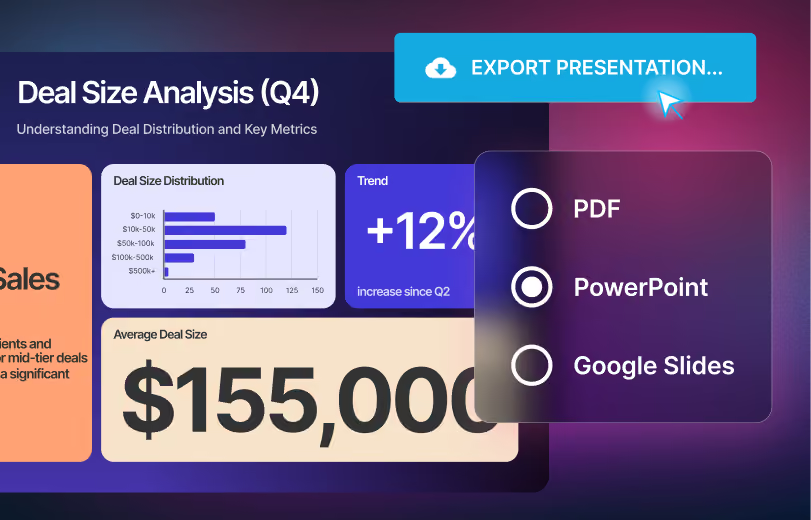
Open the Presentation menu, click Export Presentation, select Google Slides, and click Export. A progress bar shows the export status, and the deck opens in a new Google Slides tab where every slide is editable.
Frequently asked questions
Start with Create with AI, attach the PDF using the plus icon, and review the outline it drafts from your content. Generate the deck, then choose Google Slides under Export Presentation. The finished deck opens in Google Slides as soon as the export completes.
Yes. Exports to Google Slides are fully editable. The deck arrives in Google Slides as working slides, so you can keep changing text, images, and layouts there.
Google Slides does not support Beautiful.ai’s embedded videos, audio files, animations, or transitions, so those are lost on export. Everything else exports as editable slides. To keep the animations, present from Beautiful.ai or share a link to the live presentation.
Yes. The same Export Presentation menu offers editable PowerPoint, PowerPoint images, PDF, print, and an Offline Player package. Editable PowerPoint keeps every element editable, speaker notes included. If PowerPoint is your destination, the PDF to PPT page walks through that flow.
Beautiful.ai is free to try: every account starts with a 14-day free trial of the Pro or Team plan, and editable PowerPoint export is included on those plans. After the trial, a paid subscription keeps your access going.
No, and that is by design. Beautiful.ai does not trace the PDF page for page. It rebuilds the content into designed slides, and the outline step lets you decide what carries over. If you need an exact visual copy, Adobe’s own guidance is to convert the PDF to PowerPoint first and import that file into Google Slides, and it notes the formatting may change along the way. If you need a deck you can edit, restyle, and present, start here.
That message means your company’s Google Workspace is blocking the connection. Ask your Google Workspace admin to open API Controls under Security, choose Manage Third-Party App Access, find Beautiful.ai, and change its access to Trusted. Once Beautiful.ai is a trusted app, the export runs.

Turn your next PDF into a presentation
Land in Google Slides with a deck you can still edit. Try Beautiful.ai free for 14 days.
