

.avif)

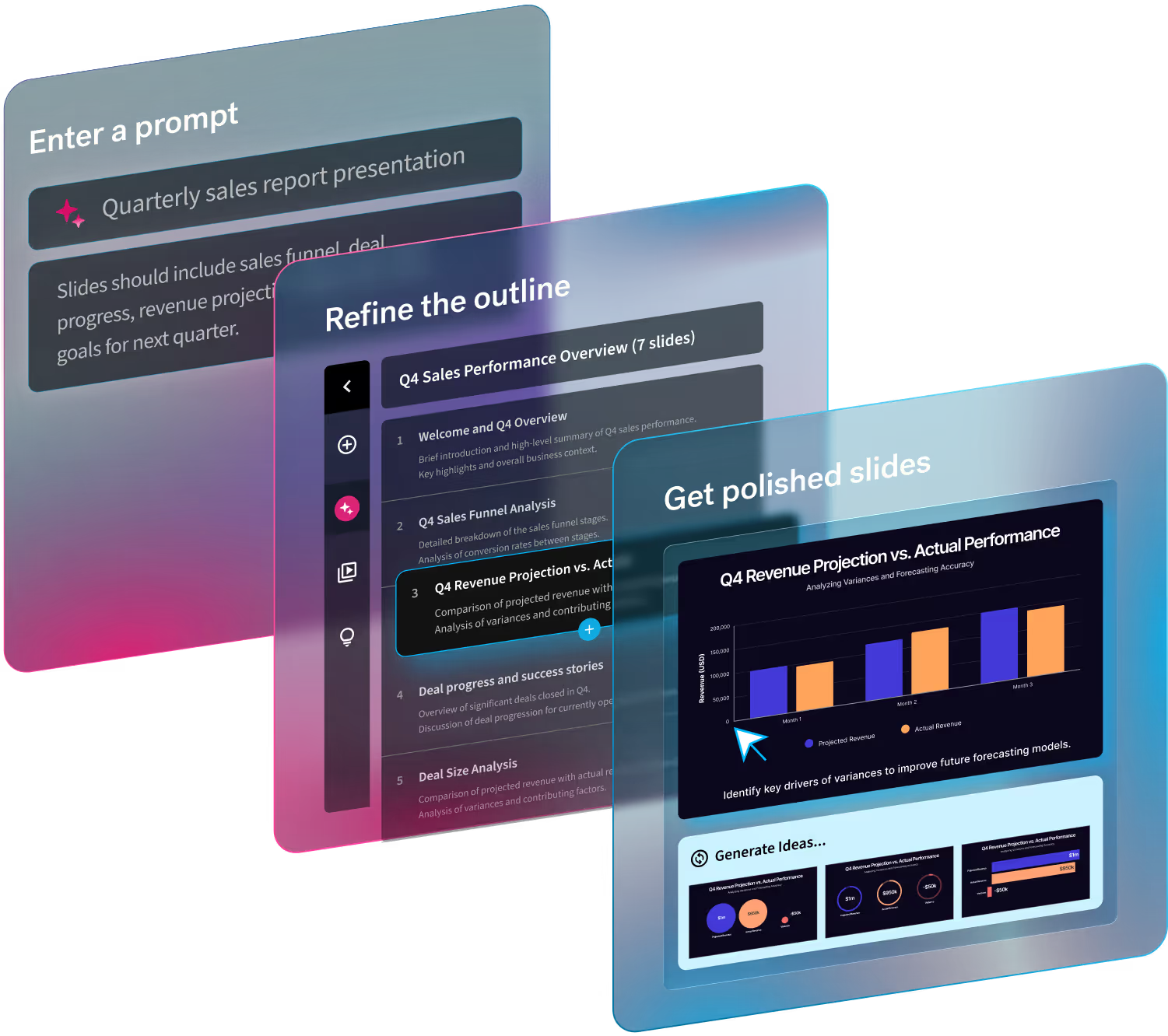
To make a presentation using AI, describe what you need in a clear prompt, generate an outline, turn that outline into designed slides, then refine the content and visuals before you present. In a tool like Beautiful.ai, Canva, or Gamma, the whole process takes minutes instead of hours. Here is the full workflow, step by step.
First, choose your AI presentation tool
The steps below work in any AI presentation maker, but the results differ by tool. Beautiful.ai generates a deck from your prompt, lets you add context from webpages, documents, or blocks of text, and builds every slide on Smart Slide layouts that keep the design intact as you edit. Canva's AI slide generator sits inside its wider design platform, a good fit when presentations are one of many things you create there. Gamma produces clean web-based decks from a prompt. Microsoft 365 users can draft slides with Copilot inside PowerPoint, and Google Workspace users can do the same with Gemini in Slides. Pick the tool that matches where your deck needs to end up and how much design help you want.
1. Start with a clear prompt
AI works best when you give it clear instructions. Begin by describing:
- Your topic
- Target audience
- Goal of the presentation
- Desired tone (formal, persuasive, educational, etc.)
- Length (e.g., 10 slides, 15-minute presentation)
Example prompt:
“Create a 10-slide presentation on renewable energy trends for business executives. Keep it concise and data-focused.”
The more specific your input, the better the output. More advanced AI presentation makers—like Beautiful.ai—give you the option to add additional context like webpages, blocks of text, or documents to your prompt to get even more relevant slide results.
2. Generate an outline first
Most AI tools can instantly create a structured outline with slide titles and bullet points. Review the outline before generating full slides to make sure:
- The flow is logical
- Key points are included
- The depth matches your audience
You can ask the AI to refine it by saying things like: “Add more real-world examples” or “Make this more beginner-friendly.”
3. Turn the outline into slides
Next, use AI to expand the outline into complete slide content. AI tools can:
- Write bullet points
- Suggest headlines
- Add supporting explanations
- Recommend data points
- Propose visual ideas (charts, icons, images)
Some AI presentation platforms apply design automatically as well. Beautiful.ai builds each generated slide on a Smart Slide layout, so formatting, alignment, and spacing adjust on their own when you edit the content.
4. Refine and customize
AI speeds up creation, but you should still review and personalize the slides:
- Adjust wording to match your voice
- Add company-specific data or branding
- Replace generic examples with real ones
- Simplify text-heavy slides
You can also prompt the AI to shorten slides, make them more persuasive, or add speaker notes.
5. Add visual enhancements
Many AI presentation tools can suggest:
- Relevant images
- Charts and graphs
- Icons and illustrations
- Layout improvements
Visual clarity is essential. Keep slides clean, avoid overcrowding, and let visuals support your message.
6. Generate speaker notes
AI can create speaker notes based on the content on each slide to help you present confidently. You can ask for data insights, summaries, and important key points to include. This is especially helpful for longer presentations or team handoffs.
Benefits of using AI for presentation slides
- Saves hours of manual work
- Overcomes writer’s block
- Improves structure and clarity
- Ensures consistent formatting
- Helps non-designers create polished decks
To recap, making a presentation with AI takes four moves: provide a clear prompt, review the outline, generate the slides, and personalize the result with your own data and branding. AI handles the structure and design work so you can focus on delivering a compelling message.
With the right instructions, you can go from idea to professional slide deck in just minutes.






.gif)
