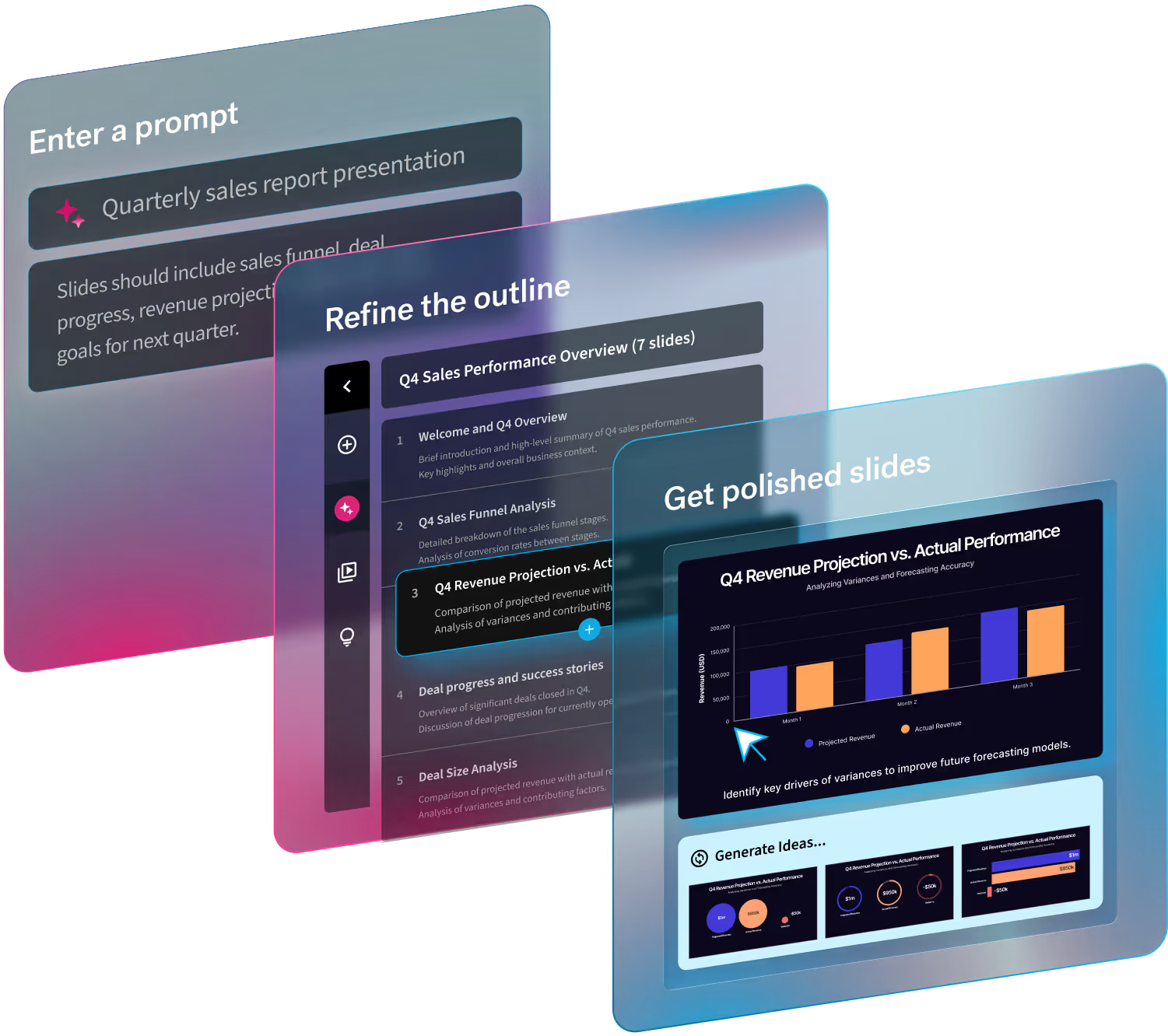

In typical presentation software, creating data-driven slides requires manual entry and formatting. With an AI presentation maker, design and input can be automated. But the data itself stays static. Accidental oversight can easily lead to presenting outdated numbers to important stakeholders.
Beautiful.ai’s Smartsheet and Airtable integrations connect charts and tables to the data your team already maintains. Update the source, and the linked slide follows, saving you from rebuilding charts or retyping figures every time the data changes.
Data that’s always up to date
Reporting data usually lives outside the presentation. When that information has to be copied manually into slides, you create another version of the data to maintain.
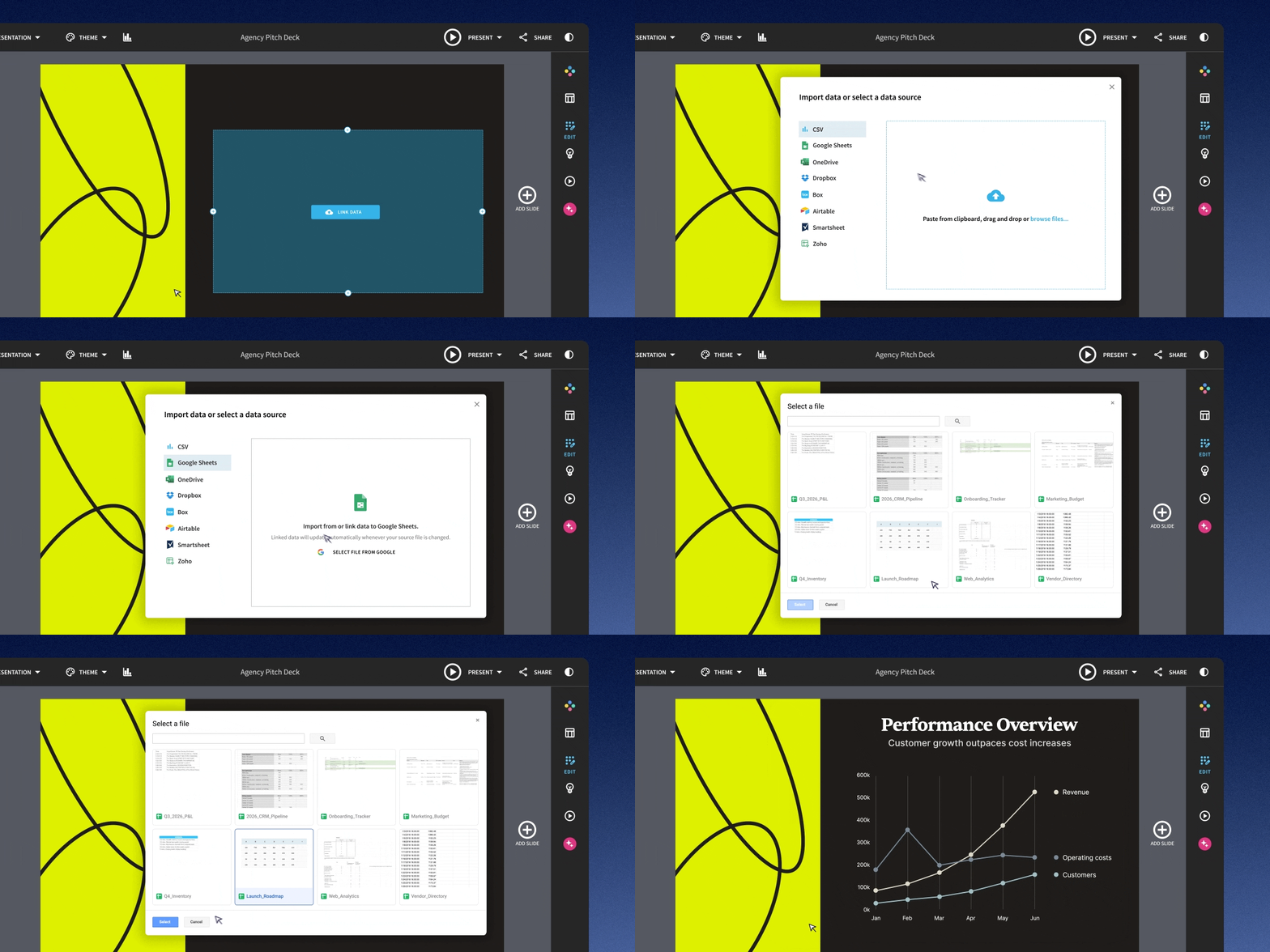
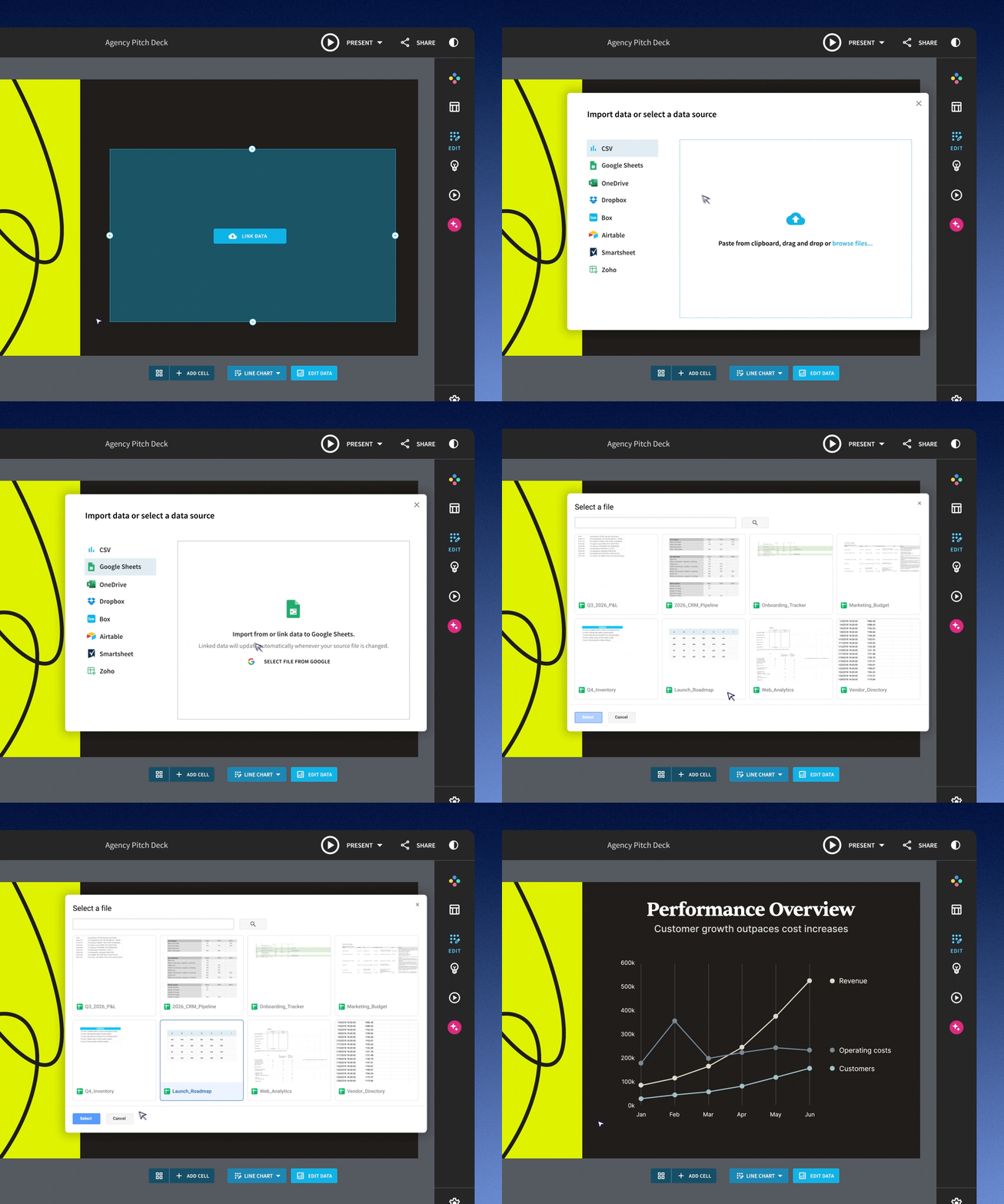
Beautiful.ai lets you import that data directly into a chart or table. Click the chart or table, select Edit Data, then Import Data. Choose Smartsheet or Airtable as your source and pull the data into your slide. Now your presentation can stay connected to the information your team is already updating.
Smartsheet
Connect a Beautiful.ai chart or table directly to Smartsheet and you can stop retyping the latest figures before every project update or status meeting. When the sheet changes, the linked slide follows.
For teams that already manage project data in Smartsheet, this removes a duplicate step from presentation prep. Instead of checking whether every number in the deck matches the source, you can spend that time deciding what the latest numbers mean and what your audience needs to know.
Airtable
Airtable is often used to organize data that changes frequently, from campaign performance to sales and product workflows. Beautiful.ai lets you link that data to a chart or table once instead of rebuilding the visualization whenever the underlying records change.
For a marketing team reviewing campaign results each week, that means the presentation can keep pace with the source data. The team can focus on explaining what changed and what to do next instead of recreating last week’s chart.
Connect once, stay current
Recurring decks shouldn’t require recurring data entry. Connecting Smartsheet or Airtable to Beautiful.ai saves prep time, reduces opportunities for copy-and-paste errors, and helps keep frequently used charts and tables presentation-ready.
Explore all of our integrations, from digital asset management to data linking and more. Start your free 14-day trial today and start building polished, on-brand slides with data that’s always current.

.avif)